The useful question is not “Which e-ink tablet is best?” It is “Which device removes the specific friction that keeps this reading or writing job from happening—without importing a larger set of problems?”
This guide compares three current, materially different approaches: the focused color workspace of reMarkable Paper Pro, the handwriting-first and offline-friendly Supernote Manta, and the app-capable BOOX Note Air5 C. Official specifications and support documentation were checked on August 23, 2026. Prices, bundles, availability and software features can change; verify them on the linked manufacturer pages before buying.
The fast answer
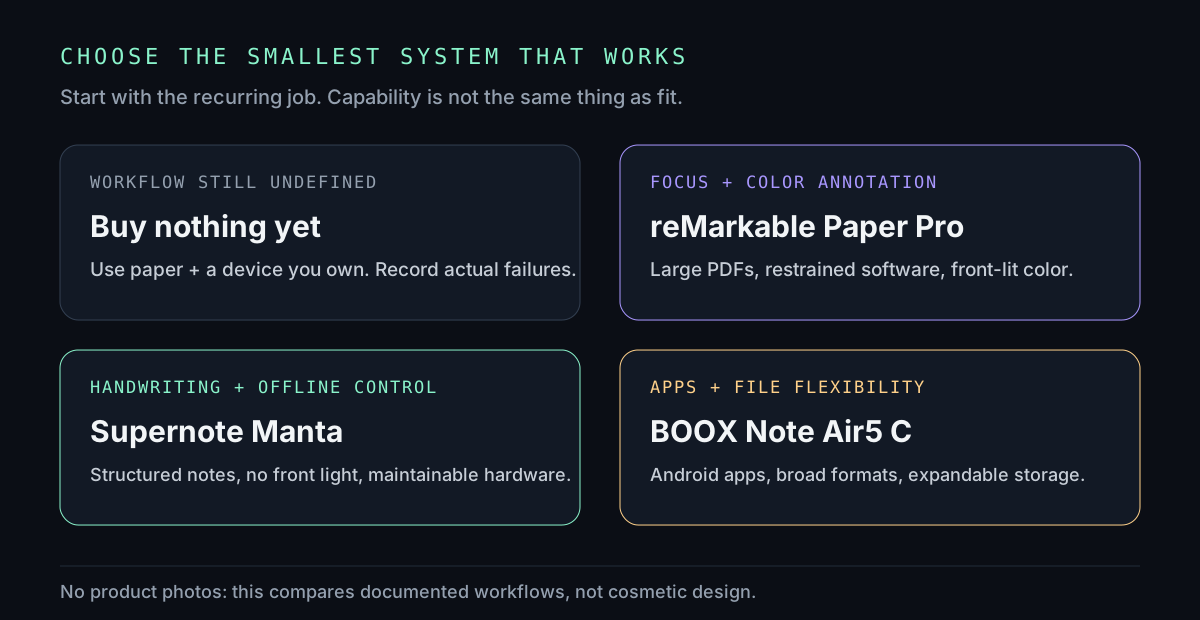
- Buy nothing if you cannot name a weekly job, your notes already disappear unused, or you mainly want novelty.
- Choose reMarkable Paper Pro when large-page reading, handwritten annotation and a deliberately limited environment matter more than apps.
- Choose Supernote Manta when handwriting, durable organization, offline operation and maintainability outrank color and a built-in reading light.
- Choose BOOX Note Air5 C when third-party Android apps, broad file support and expandable storage are requirements—not merely attractive possibilities.
Start with six compatibility checks
1. Define one recurring output
“I want to focus” is not a workflow. “I review two 40-page PDFs each week and return annotated copies” is. So is “I keep project meeting notes and need to find them by client and heading.” Write the recurring input, action and export before comparing hardware.
2. Trace the entire file path
Where does a document begin? How does it reach the tablet? What format leaves the tablet? Where is the durable copy? If a colleague needs comments in Word, a beautiful handwritten notebook that exports only flattened pages may add work. Test the exit path, not just the writing surface.
3. Decide whether apps are a requirement or a leak
Android app access can consolidate Kindle, cloud storage and specialized readers. It can also rebuild the interruption-rich environment you were trying to escape. The digital-environment reset offers a useful rule: do not install a channel merely because a device permits it.
4. Name the display tradeoff
Color helps with highlights, diagrams and marked-up documents. Monochrome can be clearer and simpler. A front light matters if you routinely work in dim rooms. Screen size improves full-page PDFs but raises weight and bag space. E-paper is reflective and slow-refreshing by design; it is not a fast LCD with nicer branding.
5. Set the privacy boundary
“Offline capable,” “encrypted,” and “compliant with my workplace” are different claims. Decide whether files may enter a vendor cloud, which desktop apps are allowed, whether USB transfer is acceptable and whether device loss is covered by a passcode and policy. Sensitive health, legal, student or client data belongs only on systems approved for that use.
6. Price the system, not the slab
Check whether the pen, replacement tips, folio, keyboard, cloud features and accidental-damage coverage are included. Then compare the complete cost with a used device, a basic e-reader plus notebook, or the hardware you already own. Do not use a subscription to justify a purchase; decide whether the subscription is part of the required workflow.
reMarkable Paper Pro: the focused color desk
reMarkable documents an 11.8-inch Gallery 3 color display, adjustable reading light, 64 GB of storage, PDF and EPUB import, PDF/PNG/SVG export, and a weight of about 525 grams. Its custom operating system is intentionally narrower than a general tablet. That limitation is the product.
Best fit: readers who annotate full-page documents, visual thinkers who benefit from restrained color, and writers who want handwriting and optional typing without a browser-first environment.
Meaningful tradeoffs: it is the largest and heaviest device in this comparison. Desktop/mobile sync and expanded cloud features involve reMarkable's account and Connect service; official support says the device can also be used offline, with documents stored only on the tablet. Its focused software is a poor fit when your work depends on arbitrary Android apps or specialized file formats.
Do not buy it for: general tablet replacement, video, fast web work or the hope that a premium surface will create a writing practice by itself.
Supernote Manta: the handwriting system
Supernote positions the 10.7-inch Manta around handwriting, structured navigation, a flexible monochrome display, ceramic nibs and modular repair. The manufacturer states that it does not use color ink or a front light in this model, explicitly preferring display reflectivity and handwriting feel. Current documentation lists PDF, EPUB, Word, text and several image/comic formats, plus Kindle integration.
Best fit: people building a long-lived handwritten notebook system, readers who work in normal ambient light, and users who value offline file control, replaceable components and software without a subscription.
Meaningful tradeoffs: no built-in front light means the room must provide the light. No color means highlight-heavy academic or design workflows may lose information. Its organization model is valuable only if you learn and maintain it.
Privacy distinction: Supernote states the device can operate fully offline and transfer files by USB without using its servers. It also offers a self-hosted private-cloud option for supported Linux/Unix systems. That is control, not automatic regulatory compliance: Supernote's own June 4, 2026 notice says it is not currently HIPAA-compliant and that offline use alone does not confer compliance.
BOOX Note Air5 C: the flexible e-paper computer
BOOX documents a 10.3-inch Kaleido 3 color display, 300 ppi black-and-white and 150 ppi color resolution, adjustable warm/cool front lighting, Android 15, third-party app support, 64 GB of storage, a microSD slot and a weight of about 440 grams. It supports a much broader set of document formats than the other two devices.
Best fit: workflows that genuinely require multiple reading services, Android apps, expandable storage or uncommon formats while still benefiting from an e-paper display.
Meaningful tradeoffs: capability brings configuration. Apps introduce their own permissions, accounts, notifications, update policies and privacy terms. Color Kaleido 3 has lower stated resolution in color than in monochrome, and fast-refresh modes cannot make electrophoretic display behavior identical to LCD or OLED.
Do not buy it for: minimalism by default. It can be configured into a restrained tool, but its open app environment will not make that decision for you.
The no-buy option is a real contender
A cheap notebook beside a laptop has instant input, no account, no sync failure and an excellent discard path. A basic e-reader plus paper may outperform an expensive writing tablet when reading and notes do not need to occupy the same file.
Before purchasing, run one week with the closest tools you already own. Put the phone away. Print or locally save the actual documents. Take notes on paper or with an existing stylus. At the end, count the specific failures. If the failures are “PDF text was too small,” “I could not return annotations,” or “I could not retrieve notes by project,” you have requirements. If the failure is “I still did not sit down,” new hardware is unlikely to solve the bottleneck.
A seven-day pre-purchase protocol
- DAY 1Write the job.
One sentence: input, action, output, frequency. Reject vague goals such as “be more productive.”
- DAY 2Collect real files.
Choose three representative PDFs, notes or books—including the awkward one with tables, color or handwriting.
- DAY 3Map the route.
Document import, annotation, search, export, backup and deletion. Mark every required account and subscription.
- DAY 4Test dimensions.
Print outlines at actual screen size or handle a returnable store unit. Consider desk, couch, commute and bag—not only the product page.
- DAY 5Set a data rule.
List what may enter the device, what must remain offline and how loss or resale will be handled.
- DAY 6Run the no-buy workflow.
Complete the job with what you own. Record friction rather than general dissatisfaction.
- DAY 7Choose the smallest fix.
Buy only if one option resolves the recorded failures with an acceptable exit path. Keep the return deadline visible and test with real work immediately.
What not to buy
- Do not buy color for black-and-white prose and call it future-proofing.
- Do not buy an open Android system when app restriction is the feature you need.
- Do not buy a cloud workflow for data your organization forbids you to upload.
- Do not buy a keyboard bundle before confirming typed-text export fits your writing stack.
- Do not buy from a comparison that hides accessories, subscriptions, returns or file-export limits.
An e-ink tablet can become part of the extended mind: a stable place where reading, marks and retrieval participate in thought. That is precisely why the workflow matters more than the object. Use the deep-work field manual to define the work block, and the private-inner-life guide to keep the resulting notebook from becoming another performance surface.
Official sources and editorial boundary
- reMarkable Paper Pro features and specifications, plus official cloud/offline support guidance.
- Supernote Manta product documentation, offline/HIPAA status, and private-cloud documentation.
- BOOX Note Air5 C official specifications.
- E Ink Gallery 3 technology documentation. Used to check display behavior rather than repeat a retailer's analogy.
Boundary note: This is a requirements-based editorial comparison, not a hands-on review, security audit, medical claim or guarantee of current availability. Verify current specifications, policies, bundles and return terms with the manufacturer.
END OF FIELD GUIDE 017
Keep the question. Test the model.
Choose the narrowest claim the evidence can carry, then leave room for revision.