A password manager is an infrastructure choice disguised as an app choice. The visible features matter. The harder questions matter more: Who needs access? What happens when a phone is lost? Can another adult recover the family? Who is responsible for backups? Will the system still be maintained six months from now?
The baseline is boring—and important
Current NIST digital identity guidance says verifiers should allow password managers and autofill, and should permit pasting passwords. That reflects the real benefit: a manager makes unique, randomly generated passwords practical at human scale. Reusing one memorable password across sites creates a shared failure point.
A password manager does not make passwords phishing-resistant, and NIST explicitly treats passwords as non-phishing-resistant authenticators. Use stronger multifactor authentication where accounts support it—especially for email, finance, the password manager itself and the account that controls device recovery.
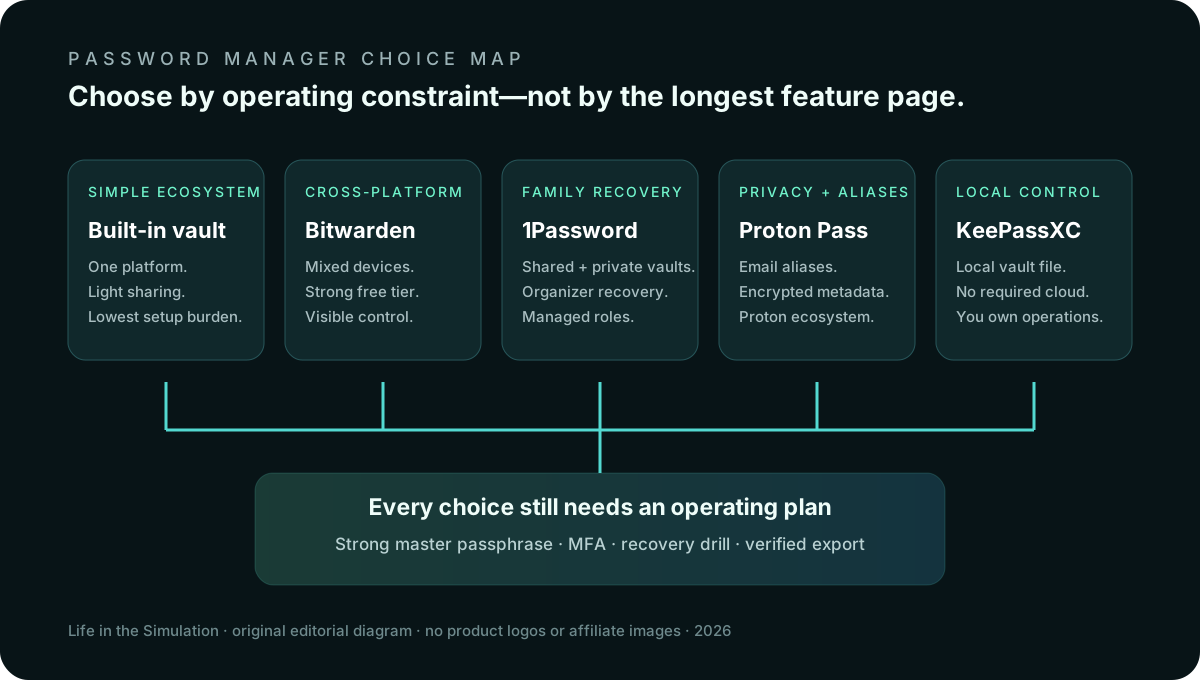
What each choice is actually for
Bitwarden: cross-platform value and visible control
Bitwarden is the strongest default for people who mix operating systems, want an open-source client and care about a functional free tier. Its official plan documentation says the free personal plan supports unlimited items across unlimited devices. Family organization features cover up to six users on the Families plan. It also offers a self-hosting path.
Tradeoff: organizational collections, individual vaults and family sharing require a little conceptual setup. Self-hosting increases control only if somebody reliably patches, monitors, backs up and recovers the service. For most households, self-hosting is an administrative project, not a free security upgrade.
1Password: family operations and recovery
1Password Families is built around private vaults, shared vaults and designated family organizers. Its official documentation recommends making another trusted person an organizer so one adult is not the only recovery path. Each member has an account password, Secret Key and Emergency Kit.
Tradeoff: it is a subscription product, and the recovery model depends on family roles being configured before the emergency. The polished workflow cannot compensate for one person remaining the sole organizer, or for Emergency Kits stored where nobody can reach them.
Proton Pass: privacy ecosystem and aliases
Proton Pass combines a password vault with passkeys and email aliases. Proton states that vault contents and metadata fields are end-to-end encrypted, and that its apps are open source and independently audited. Its free plan currently advertises unlimited logins and unlimited devices; paid tiers add features such as integrated two-factor codes and additional alias controls.
Tradeoff: integration is convenient, but putting email, aliases, recovery and password storage inside one provider increases the importance of protecting and recovering that central account. Decide whether consolidation reduces household mistakes or concentrates too much operational risk.
KeePassXC: a local vault with local responsibility
KeePassXC is an open-source desktop password manager that stores an encrypted database file you control. There is no required cloud account or subscription. Browser integration is available, and the database format can be synchronized using a storage system you choose.
Tradeoff: KeePassXC does not magically solve synchronization, mobile access, version conflicts or off-site backup. You own those systems. A local-only vault without tested backups is private right up until the drive fails.
The no-buy choice: use the manager already in the ecosystem
Apple Passwords or Google Password Manager may be enough when every important device lives in one ecosystem, sharing needs are simple and the account-recovery process is understood. Using the built-in manager consistently is better than buying a sophisticated tool nobody adopts.
Tradeoff: leaving the ecosystem can be awkward, household roles may be less flexible, and the platform account becomes a critical recovery dependency. Verify export support before committing years of credentials.
Decision matrix
| Priority | Best first look | Main burden |
|---|---|---|
| Mixed devices, strong free option | Bitwarden | Learn organization and collection sharing |
| Family roles and assisted recovery | 1Password Families | Subscription and organizer discipline |
| Aliases and privacy-focused ecosystem | Proton Pass | Manage concentration around the Proton account |
| Local file and no required cloud | KeePassXC | You own sync, backup and mobile workflow |
| Simple, single platform | Built-in Apple or Google manager | Platform dependence and export planning |
Seven questions before choosing
- Which devices must work? List desktop browsers, phones, tablets and any work devices where extensions are restricted.
- Who needs a private vault? Shared credentials should not mean one shared master password.
- Who can recover whom? Draw the recovery path. If the answer is “only Dad,” the family system is not finished.
- What must be shared? Streaming accounts are different from tax portals, medical logins and financial credentials. Minimize shared access.
- Where does MFA live? Keeping codes in the same vault is convenient; separating them can reduce a single point of compromise. Choose deliberately for high-value accounts.
- Can you export? A usable export path reduces lock-in. An exported plaintext file is itself sensitive and must be handled briefly and removed securely.
- Who maintains the system? Updates, recovery reviews, dormant accounts and family onboarding need an owner.
What the manager cannot protect
No vault protects an unlocked, compromised device from everything the user can see. A malicious browser extension, active session theft, coercive sharing or approval of a convincing phishing prompt can route around a strong stored password. The manager is one layer.
- Use a long, unique master passphrase that is not stored in another account with the same recovery dependency.
- Enable strong MFA on the vault. Prefer phishing-resistant methods such as security keys or passkeys when the service and your recovery plan support them.
- Keep operating systems, browsers and manager extensions current.
- Review extension permissions and remove abandoned browser add-ons.
- Protect the primary email and platform accounts that can trigger resets.
- Store recovery materials offline in a location trusted adults can access during a real emergency.
This is also why a personal data minimization protocol matters. Strong credentials reduce unauthorized access. Fewer unnecessary accounts reduce the number of doors that need credentials at all.
A migration that does not create a new mess
- Map the current system. List browsers, devices, existing vaults, paper records and people who depend on them.
- Create the new vault and recovery plan first. Configure MFA, emergency materials and at least one second trusted organizer where supported.
- Test on every required device. Confirm login, autofill, lock behavior and recovery before moving everything.
- Import carefully. Use the vendor’s official import instructions. Expect duplicate and malformed records; review them rather than assuming success.
- Handle exports as hazardous files. Many exports are plaintext CSV or JSON. Keep them only as long as necessary, avoid casual cloud folders and remove them after verifying the new vault and backup.
- Change the highest-value passwords. Start with primary email, financial accounts, device-platform accounts and the accounts that can reset others. Generate unique values.
- Move the household in stages. Teach saving, sharing, recovery and phishing checks. Do not delete the old system until required records are verified.
- Run a recovery drill. From a signed-out device, confirm that recovery materials and the trusted-person path actually work. Record the date in a weekly reality check.
What not to buy—or build
Do not choose by an unverified “military-grade” label, a lifetime deal from an unmaintained vendor, an opaque browser extension with no clear support history, or an ecosystem you cannot export from. Do not self-host because the diagram feels sovereign if nobody will maintain the server. Do not put every family member into one shared account to save setup time.
A serious tool should publish current security documentation, explain recovery and export, support MFA, maintain clients and give you a clear place to check changes. The decision is operational, not aesthetic.
Official sources checked
- NIST SP 800-63B-4: Authentication and Authenticator Management
- Bitwarden plan documentation and encryption documentation
- 1Password Families setup and recovery documentation
- Proton Pass plan comparison and security documentation
- KeePassXC user guide
This is an editorial decision framework, not a security audit or guarantee. Vendor features and plans are volatile; verify the linked official documentation before choosing. For an at-risk household or organization, get advice matched to its threat model.
END OF FIELD GUIDE 018
Keep the question. Test the model.
Choose the narrowest claim the evidence can carry, then leave room for revision.
Ready for phishing-resistant authentication?
Use the hardware security-key guide to check account support, connectors, backups and the no-buy option.