A website blocker cannot make a vague task meaningful. It can stop one reflex: the half-conscious escape from an uncomfortable sentence into a feed, inbox or video. That interruption is sometimes enough to let intention catch up.
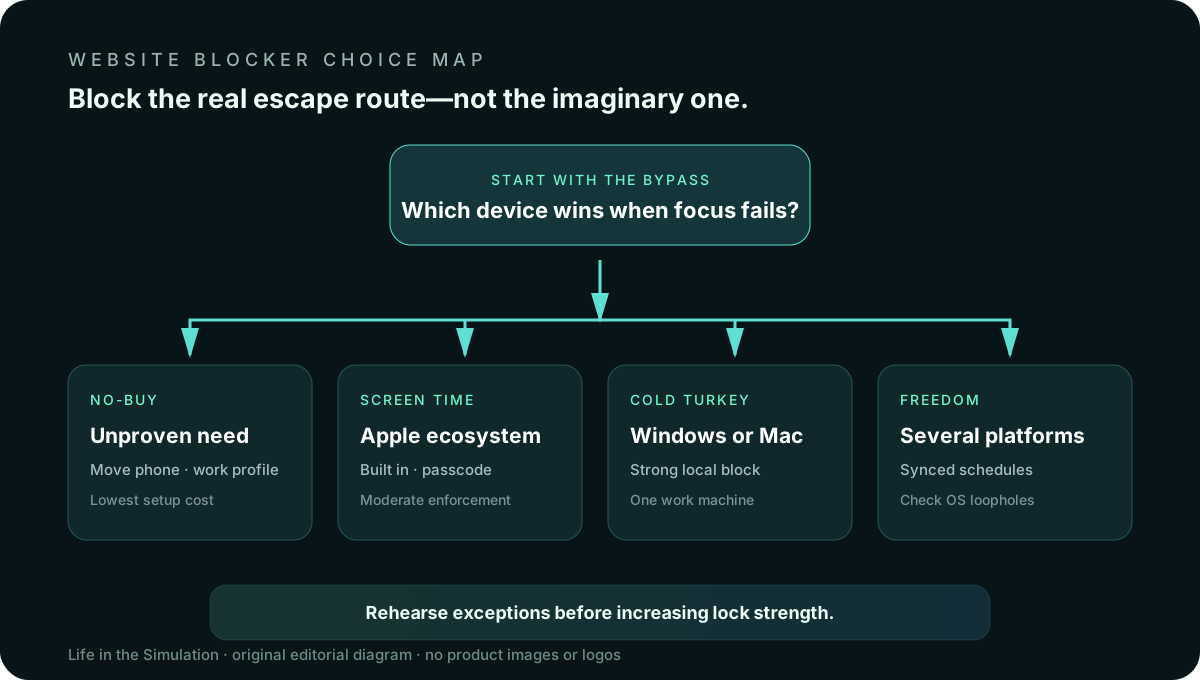
The products differ less by how many sites they can name than by where they enforce the rule, how hard the rule is to undo and how many devices remain outside it. The right choice begins with your bypass pattern. If you leave the laptop for the phone, a desktop-only lock is theater. If you need one protected writing machine, cross-device subscriptions may be unnecessary.
Diagnose the escape route first
- What do you open? List exact sites, apps and secondary browsers, not “the internet.”
- Where do you escape? One computer, every computer, phone, tablet or a work-managed device you cannot modify?
- When should access return? After a timer, on a schedule, during a recurring work block or only after another person enters a passcode?
- What must remain available? Emergency calls, authentication, reference material, client portals and accessibility tools deserve an explicit allowlist.
- How do you bypass rules? Quit the app, change the clock, switch devices, use another browser or delete a permission? Buy for the real loophole.
A blocker is not treatment for compulsive behavior, a substitute for sleep or a safe tool for controlling another adult. On employer or school devices, follow policy and do not attempt to defeat administrative controls.
Freedom: coordinated blocks across devices
Freedom's official feature page documents scheduled and recurring sessions, cross-device synchronization and Locked Mode across Mac, Windows, iPhone, iPad, Android and Chromebook. That breadth is the reason to consider it: one schedule can cover the laptop and the phone that would otherwise become the fallback.
Fits: people who switch devices during the same work period, families managing their own routines across platforms, and recurring schedules that should follow an account. Tradeoff: the useful cross-device system adds an account, software on each device and ongoing dependence on platform permissions.
“Locked” is not identical on every operating system. Freedom's help documentation says that on iOS, Locked Mode prevents changes inside Freedom but does not itself stop a user from disabling Freedom's Screen Time permission in Settings; a separate Screen Time passcode closes that route. Read the platform-specific limitations before treating the label as a guarantee.
Cold Turkey: strong local enforcement on a computer
Cold Turkey Blocker supports website and application blocks, schedules, timed locks, exceptions and broad allow/block patterns on supported desktop systems. Its official site describes a free tier and a Pro license sold as a one-time purchase rather than a subscription. The vendor also says settings and statistics remain stored locally.
Fits: a Windows or macOS workstation where the main problem is leaving demanding work for a browser or desktop app. Tradeoff: it is not the choice for iPhone, iPad, Android, Linux or ChromeOS coverage. A strong desktop block simply moves the distraction if your phone remains on the desk.
Begin with the free version and a short timed block. Test required sites, sign-in pages, video calls and downloads before enabling a difficult lock for a workday. Enforcement earns trust through a safe rehearsal, not a dramatic first commitment.
Apple Screen Time: built in, capable and easy to misconfigure
Apple's Screen Time documentation covers Downtime, App Limits, Always Allowed apps and Block at Downtime on iPhone. Apple notes that limits can be ignored by default; a Screen Time passcode and Block at Downtime are required when the goal is an actual block rather than a reminder. Mac Screen Time can also schedule downtime.
Fits: an Apple-only setup, a no-cost first attempt, or a household already using Family Sharing for child accounts. Tradeoff: category limits can catch useful apps, browser-level needs may be less precise than a dedicated blocker and self-administered passcodes are only as strong as your willingness not to override them.
For your own device, consider letting a trusted person set the Screen Time passcode only if both people clearly agree on the boundaries and recovery plan. For children, keep safety communication and school requirements available, explain the rule and use Apple's family controls rather than secret surveillance.
The no-buy option: change the path before buying enforcement
Try this for seven days: make a separate browser profile containing only work bookmarks; sign out of entertainment accounts there; remove feed shortcuts from the home screen; charge the phone outside arm's reach; and write distracting impulses on paper instead of acting on them. Use the digital environment reset for the full cue audit.
Built-in host-file or router blocking can be effective, but it is a poor recommendation for many readers. It may break authentication, updates or other household devices and can be trivial to reverse for the same person who configured it. The no-buy route should be simpler and safer than the tool it replaces.
The decision matrix
Several platforms, one schedule
Freedom. Verify each operating system's permissions and loopholes before relying on Locked Mode.
One Windows or Mac work machine
Cold Turkey. Use local, difficult-to-undo blocks after testing exceptions; keep the phone elsewhere.
Apple devices, moderate enforcement
Screen Time. Turn on Block at Downtime and use a passcode if a reminder is not enough.
Unproven need
Buy nothing. Separate the browser profile, remove cues and move the secondary device for one week first.
A safe seven-day rollout
- Measure two ordinary days. Record the time, trigger, device and destination for each escape. Do not rely on a weekly screen-time total alone.
- Protect one 45-minute output. Use the deep-work field manual to define what should exist when the block ends.
- Build the allowlist first. Include emergency communication, password manager, authentication, work references and accessibility needs.
- Run a reversible rehearsal. Five or ten minutes is enough to discover a broken login or missing exception.
- Add enforcement gradually. Reminder, timed block, scheduled block, then locked mode only if the prior level is routinely bypassed.
- Cover the second screen. Put it away, mirror the schedule or explicitly accept that the system is a prompt rather than a lock.
- Review the output. Keep the tool only if completed work, stress or recovery improved. A lower screen-time number is not the sole objective.
Privacy and reliability questions
- Does the blocker require an account, and which activity or diagnostics does it retain?
- Are schedules and statistics local, synchronized or visible to a family administrator?
- Which operating-system permissions are required, and can an update revoke them?
- Can you export settings, and how do you recover from a forgotten passcode or inaccessible allowlist?
- Does the vendor publish current privacy and support documentation? Recheck after major app or OS updates.
Use the personal data-minimization guide to evaluate accounts and permissions beyond this one purchase.
Official sources and volatile details
- Freedom features and platform coverage and Locked Mode limitations.
- Cold Turkey features, pricing model and system requirements.
- Apple Screen Time schedules and blocking and Screen Time on Mac.
This is a documentation-based decision guide, not a security evaluation or clinical intervention. Confirm current compatibility, price, refund terms and recovery behavior on the official pages before installing or paying.
END OF FIELD GUIDE 021
Keep the question. Test the model.
Choose the narrowest claim the evidence can carry, then leave room for revision.