A portable monitor can add workspace to a laptop, provide a larger screen for a compatible phone or console, or create a temporary display where a fixed monitor does not fit. The category looks simple because most models are thin rectangles. The compatibility is not simple.
A working setup needs a video source, a supported signal path, enough power, the right cable and a stand that survives the actual surface. Touch, speakers, high refresh rate, power pass-through and automatic rotation add more paths. Buy from the diagram, not from the connector shape.
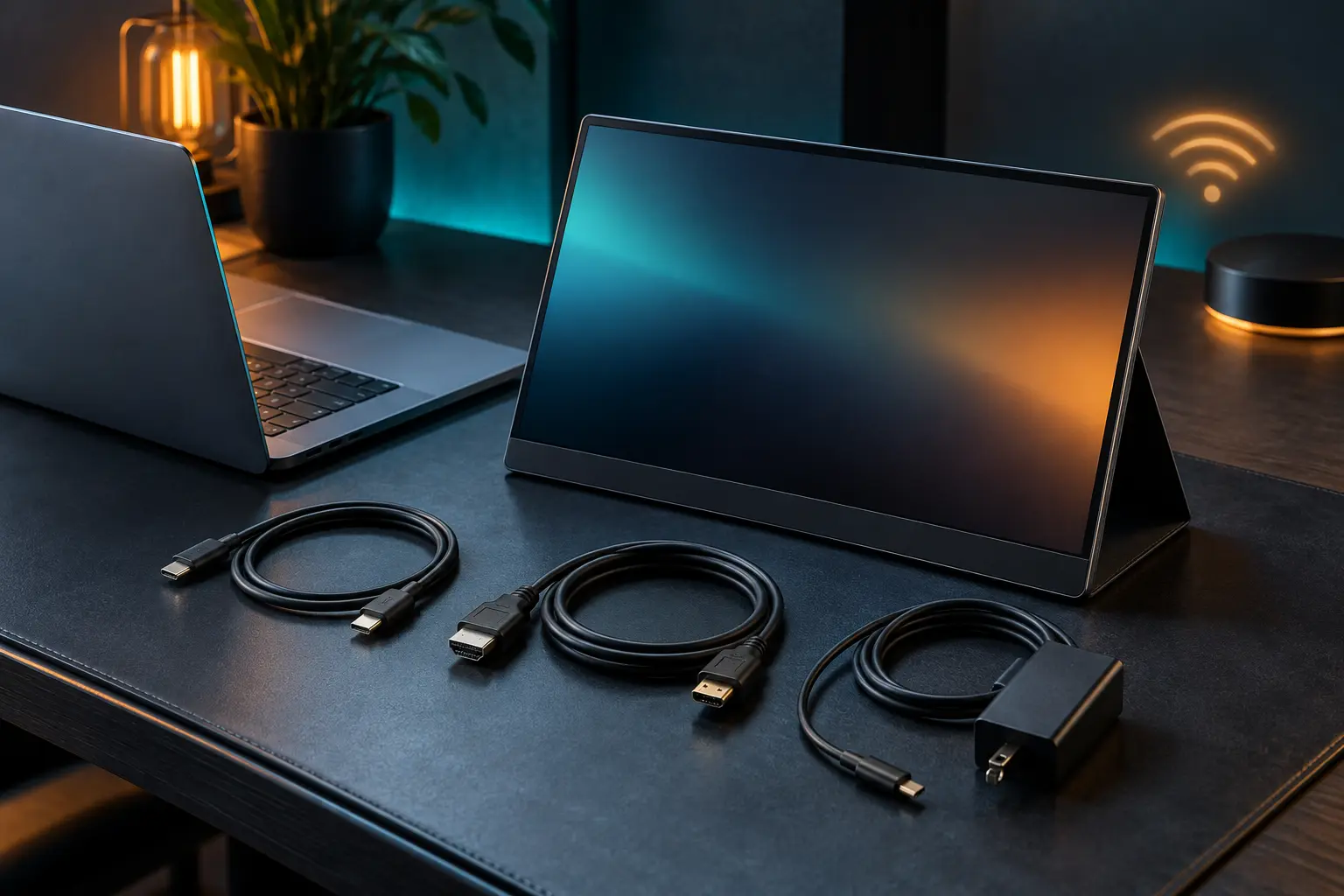
Define the portable job first
“Second screen” can mean a hotel spreadsheet display, a presenter confidence monitor, a camera preview, a console screen, a phone desktop, a vertical coding panel or an accessible larger view. Each job changes the acceptable size, latency, brightness, color accuracy, stand, touch support and power source.
Write the host devices by exact model. Record their video-capable ports, charger output, operating system, supported external-display count and whether the display must work on battery. Then list the places: desk, airplane tray, kitchen table, field kit or client room. A 17-inch panel can be movable without being travel-friendly.
The three connection paths
| Path | What must be true | Main strength | Main failure |
|---|---|---|---|
| USB-C single cable | Host port outputs video; cable carries video and adequate power; monitor accepts both | Smallest reliable kit when every link matches | USB-C shape hides missing DisplayPort Alt Mode or insufficient power |
| HDMI plus power | Host outputs HDMI; correct full/mini/micro cable; monitor receives separate USB power | Clear, broadly compatible video path | Forgetting that HDMI usually does not power the portable panel |
| Wireless or software display | Both endpoints support the same protocol or app; network and policy allow it | No long video cable; can reuse a tablet or receiver | Latency, compression, pairing, updates, restrictions and variable reliability |
Some displays support more than one path. That is useful only if the backup path works with your hosts and the required cables are in the bag. A second USB-C port may be power input, video input, pass-through or a subset. Read the port diagram for the exact model.
USB-C: the connector is not the capability
USB-C can carry DisplayPort video through Alternate Mode and can participate in USB4 or Thunderbolt display paths. It can also be a data-and-charging port with no video output. VESA describes DisplayPort over USB-C as a supported connector path; USB-IF documents USB Power Delivery separately. Neither standard says that every USB-C port implements every role.
Check the computer manual for the exact port symbol and specification. Then check the monitor input requirements and the cable. A full-featured cable needed for video may differ from a charge-focused cable. If the monitor draws power from the laptop, record the battery cost. If it accepts external power and offers pass-through charging, verify both the input requirement and how much power reaches the host; pass-through is not automatically the laptop charger's full rating.
Do not infer support from a neighboring laptop model, processor generation or a listing that says only “USB-C.” The site's USB-C cable fit card traces source, sink, cable, power and display job separately.
HDMI: video is only half the setup
HDMI is often the safer fallback for laptops, consoles and cameras that have a known HDMI output. Portable displays frequently use mini-HDMI or micro-HDMI to save space, so the cable ends matter. An adapter chain may add mechanical strain to a fragile side port.
The monitor will usually still need USB power from a charger, power bank or suitable host port. That creates two cables and a power budget. Verify the required voltage and wattage in the manual; do not assume any phone charger or battery pack is sufficient. A dimming or cycling display may indicate insufficient power, but use manufacturer troubleshooting rather than improvising electrical work.
Touch normally requires a data path back to the host in addition to HDMI video. A manufacturer support guide may call for HDMI plus a USB data cable. Touch compatibility can vary by operating system and device; never assume a touchscreen label means full touch support from a phone, console or Mac.
Wireless is a convenience layer, not a universal cable replacement
Windows wireless display features depend on Miracast support in both the source and receiver; Microsoft tells users to verify support and notes that a non-Miracast display needs a compatible adapter. Apple's Sidecar can extend or mirror a supported Mac desktop to a compatible iPad over wireless or a cable. These are different ecosystems and use cases.
Wireless paths add discovery, authentication, radio conditions, compression and software versions. They may be perfectly adequate for documents and presentations while feeling poor for timing-sensitive interaction, color-critical work or protected media. Public or managed networks may block discovery. Some “wireless monitor” products still need power and may require a separate receiver or app.
Test wireless with the exact source, destination, account policy and content class during the return window. Keep a wired fallback for a consequential presentation. If an existing tablet already performs the job through an official feature, that is the strongest no-buy option.
Panel specifications that change real use
- Size and aspect ratio: more area helps, but it also changes bag fit and stand stability. A 16:10 panel gives more vertical workspace than 16:9 at similar diagonal size.
- Resolution and scaling: verify that the host can drive the native resolution and that interface text remains usable at the intended viewing distance.
- Brightness and finish: published peak brightness does not describe reflections, sustained behavior or outdoor readability. Treat marketing labels conservatively.
- Refresh rate: higher refresh requires support across host, port, cable and chosen resolution. It also increases power demand.
- Color claims: a gamut percentage is not calibration. Critical work needs a documented workflow and suitable instrument, not a badge.
- Stand: inspect angle range, portrait support, footprint, cable clearance and whether a sleeve is being asked to act as structural hardware.
- Speakers and audio: confirm whether audio follows HDMI or USB-C and whether the result is actually preferable to the host speakers or headphones.
The portable-monitor fit card
- Hosts: exact laptop, tablet, phone, console or camera models.
- Video outputs: verified USB-C video mode, HDMI type or supported wireless protocol.
- Power: monitor input requirement, host power cost, charger and battery-pack plan.
- Cables: connector at each end, video capability, length and included items.
- Display load: native resolution, refresh rate and the host's total external-display limit.
- Interaction: touch, stylus, rotation, audio and required USB data return.
- Physical use: bag dimensions, weight, stand footprint, portrait need and surface stability.
- Fallback: HDMI plus power, a wired tablet mode, or the laptop screen alone.
Take the card to the exact product manual. ASUS's current ZenScreen category, for example, includes models with different combinations of USB-C, mini-HDMI, batteries, touch and refresh rate; the family name is not a compatibility guarantee. ViewSonic likewise documents portable models where HDMI video and USB data serve separate roles. Category pages are useful for discovering architectures, not for transferring one model's capability to another.
What not to buy
- A USB-C-only monitor before confirming that every intended host outputs compatible video.
- A high-refresh or high-resolution panel when the host, cable and power path cannot sustain the advertised mode.
- A touch model when the operating system and return data path are unspecified.
- A wireless display for latency-sensitive work without an exact protocol and wired fallback.
- A battery model without a documented replacement, service or safe end-of-life plan.
- A large “portable” panel that does not fit the bag, tray or stand footprint where it will be used.
- Any model chosen from a family-level spec instead of its current manual.
Buy USB-C single-cable when every host port and cable is verified and a small kit matters. Buy HDMI plus power when broad source compatibility and a legible fallback matter more than one cable. Use wireless when the protocol is native to the devices and occasional latency is acceptable. Buy nothing when an existing tablet, fixed monitor or operating-system workspace already solves the real job.
Standards and official references
- VESA DisplayPort, for DisplayPort connectors and the display role in USB-C, USB4 and Thunderbolt paths.
- USB-IF: USB Power Delivery, for the separate power-delivery role.
- Microsoft Support: Screen mirroring and projecting, for current Windows wireless-display behavior.
- Apple Support: Use an iPad as a second display for a Mac, for the Sidecar no-buy route.
- ASUS ZenScreen category and ViewSonic portable-monitor support guide, as non-affiliate examples of model differences and multi-cable touch paths. Documentation checked September 26, 2026.
END OF FIELD GUIDE 067
Keep the question. Test the model.
Choose the narrowest claim the evidence can carry, then leave room for revision.