USB-C describes a connector. It does not, by itself, promise a particular data speed, display mode, charging wattage or number of external monitors. Two ports with the same oval opening can expose very different capabilities. A dock cannot add a native feature the host never provided.
The reliable buying sequence starts at the computer, not the accessory listing. Identify the exact model and port. Define the displays and devices that must work at the same time. Then choose among a portable hub, a powered USB-C dock, a Thunderbolt or USB4 dock, or a monitor with docking built in.
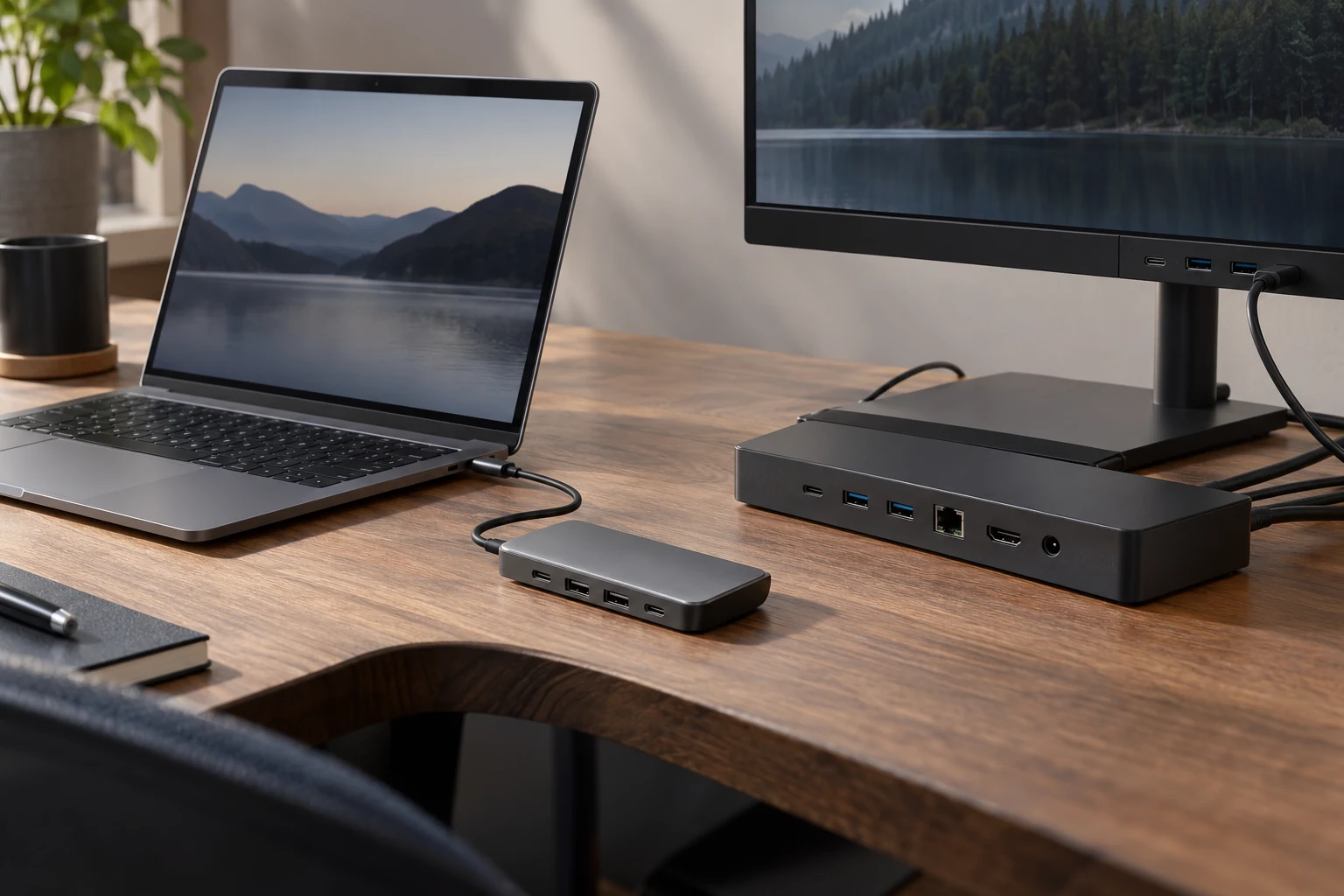
Define the desk before shopping
Write the required result in one sentence: “Connect one 4K display at 60 Hz, wired Ethernet, a keyboard, a webcam and 90 watts of laptop charging through one cable.” Add any high-bandwidth storage, audio interface, capture device or second display. Name operating systems and exact computer models.
Separate necessities from convenience. A card reader used twice a year may be better as a small adapter. A permanently attached desktop drive may justify more ports and power. If the laptop already exposes enough ports, the honest no-buy option is to use them and keep the original charger.
The host port is the ceiling
Read the manufacturer specification for the exact laptop or tablet. Look for USB data rate, USB4 or Thunderbolt generation, DisplayPort Alternate Mode or other video support, power-input requirements and the number and resolution of supported external displays. Do not infer these from the connector shape, processor family or a neighboring model.
Microsoft’s USB-C support documentation makes the compatibility chain explicit: the PC, cable and connected device must support the required feature, and a display adapter must use a port that supports the correct Alternate Mode. The same principle applies across platforms even though implementation details differ.
Operating-system and model limits matter. A dock may advertise two display outputs while a particular host supports only one native external display through that path. Confirm the host manufacturer’s current display-support page. If the dock relies on a software-driven graphics technology, treat driver availability, performance, content-protection limits and future operating-system support as separate buying criteria.
Portable USB-C hub
A hub is usually compact, bus-powered and built for a travel bag. It may add USB-A, HDMI, Ethernet, a card reader and a pass-through charging input. It is the right category when portability matters, peripheral power needs are modest and one display is enough.
Fits: presentations, hotel desks, temporary Ethernet and a few low-power peripherals. Tradeoffs: short captive cables, fewer high-speed paths, limited downstream power and a greater chance that several advertised ports share one constrained upstream link.
“100 W pass-through” does not mean the laptop receives 100 W. The hub consumes some power; the charger, cable, hub and host negotiate the result. Verify the hub’s stated host-delivery maximum and use a charger that meets both the host and hub requirements.
Powered USB-C dock
A powered USB-C dock is a desktop appliance with its own power supply. It can provide more stable power to attached devices and deliver power to the host while adding displays, Ethernet, audio and USB ports. Its upstream connection may still be limited to the data and video modes supported by the host.
Fits: a fixed desk with one native display, office peripherals and moderate data needs. Tradeoffs: display bandwidth and USB traffic share the upstream connection; feature descriptions sometimes omit the exact combination of resolution, refresh rate and data speed available at once.
Read the dock’s compatibility table and manual, not only its port count. Look for supported host operating systems, display combinations, power delivered to the computer, power available to downstream devices, Ethernet speed and whether firmware updates require a particular platform.
Thunderbolt or full-featured USB4 dock
Thunderbolt docks target higher-bandwidth desktop systems, fast external storage, multiple displays and downstream high-performance devices. Intel’s Thunderbolt 4 material specifies a 40 Gbps connection and higher minimum requirements than a generic USB-C implementation. Newer generations change the ceiling, but the host, dock and cable still have to share the same capability.
Fits: demanding fixed desks where the exact host supports the required displays and high-speed devices. Tradeoffs: higher cost, a powered brick and the possibility of paying for capability the host or workload cannot use.
Do not buy Thunderbolt solely because the number is larger. A keyboard, webcam, Ethernet link and one ordinary display may work equally well through a simpler dock. Buy the certified feature floor when it solves a measured requirement.
Monitor dock
Some monitors accept video and data over USB-C, deliver power to a laptop and expose a USB hub or Ethernet port. This can remove a separate dock and power brick. It also concentrates the system: changing the monitor may mean changing the dock, and available ports may be less accessible.
Fits: a one-display desk where clean cabling and adequate laptop charging matter more than portability. Tradeoffs: fewer ports, monitor-specific firmware, limited charging on some models and uncertainty about how display bandwidth is divided from USB data.
USB-IF documents that a wall-powered monitor can charge a laptop while carrying display data. That is a supported USB Power Delivery use case, not a guarantee about every monitor. Confirm the exact delivered wattage, video mode and downstream port speed.
Port count is not bandwidth
All traffic returns through the upstream connection. Video may consume a large share. A fast SSD, capture device and high-resolution display can compete even when each has its own connector. Product pages that list maximums separately may not explain simultaneous limits.
Ask for a supported-configuration table: exact display resolution and refresh, number of displays, color depth where relevant, and remaining USB data performance. If a critical storage workflow depends on throughput, use the device’s own benchmark after setup and keep the backup design independent of the dock.
Power Delivery is a chain
USB Power Delivery negotiates power among source, cable and sink. USB-IF’s current material describes levels up to 240 W under USB PD 3.1 with the required full-featured USB-C cable and equipment. That ceiling is not a default. Many docks deliver far less, and many hosts request less.
Check four numbers: the host’s recommended input, the dock power supply, the dock’s maximum delivery to the host and the cable rating. Leave room for the dock’s own operation and attached bus-powered devices. If the laptop reports slow charging or loses battery under load, the chain may be below the host’s demand even though charging technically works.
The cable is part of the system
A charge-only or low-speed cable can fit perfectly and disable the feature you bought the dock to provide. Use the cable supplied by the dock when required. For replacements, choose a certified cable labeled for the necessary data rate and power. Keep it only as long as needed; longer high-bandwidth connections may require different construction.
Do not diagnose an intermittent dock by swapping in the nearest USB-C charging cable and assuming the test is valid. Record the known-good cable with the desk setup.
Use the eight-step buying framework
- Identify the exact host. Save its official port and display specifications.
- List simultaneous devices. Include displays, storage, network, audio, camera and input devices.
- Specify displays completely. Resolution, refresh rate, connection type and count.
- Set the charging requirement. Use the host manufacturer’s recommended input as the starting point.
- Choose the category. Portable hub, powered USB-C dock, Thunderbolt/USB4 dock or monitor dock.
- Verify the cable. Match data, display and power requirements.
- Read current compatibility notes. Confirm operating system, firmware and supported combinations.
- Test the return window. Exercise every port together under the real workload before relying on the setup.
Official places to verify before buying
Start with the host manufacturer’s exact model page. Then consult the USB-IF Power Delivery overview, Intel’s Thunderbolt overview and Microsoft’s USB-C compatibility guidance. Use the chosen dock and monitor manufacturer’s manual for supported combinations and firmware.
Commercial disclosure: These are direct, non-affiliate references to standards, support and manufacturer documentation. Life in the Simulation receives no commission and has not hands-on tested the products shown or discussed. Specifications, operating-system support and availability can change; verify the exact current model before buying.
Who should skip a dock
Skip the purchase when the laptop already has the required ports, when one inexpensive adapter solves an occasional task, or when a second native display is unsupported by the host. A dock does not replace a backup, improve weak Wi-Fi or make an underpowered charger safe. Solve those jobs independently with the right network architecture and, where justified, a measured power bridge.
The bottom line
Choose by the weakest link: host port, operating system, dock, cable, charger or display. A portable hub wins when mobility and a few ports matter. A powered USB-C dock fits a conventional fixed desk. Thunderbolt or full-featured USB4 earns the premium for supported high-bandwidth and multi-display work. A monitor dock is elegant when one screen can carry the entire desk.
The oval connector is only the beginning of the specification. Buy the verified path, not the silhouette.
Specification and support notes
- USB Implementers Forum, USB Power Delivery, on negotiated power and supported power-delivery use cases.
- USB-IF Compliance Program, Cable and connector compliance updates, for certified cable and logo requirements.
- Intel, Thunderbolt technology overview, for current generation capabilities and certification context.
- Microsoft Support, Fix USB-C problems in Windows, on host, cable, Alternate Mode, display and power compatibility.
END OF FIELD GUIDE 047
Keep the question. Test the model.
Choose the narrowest claim the evidence can carry, then leave room for revision.