A KVM switch, a USB switch and a dock can all sit between a computer and desk equipment. That visual similarity causes expensive mistakes. A KVM switches keyboard, video and mouse between hosts. A USB switch shares USB peripherals but usually leaves video alone. A dock expands one active host and may not switch anything.
The right choice begins with a wiring map, not a resolution number on a box. List each computer's ports, each display input, every shared peripheral and whether either computer needs charging. Then trace one complete path for each host.
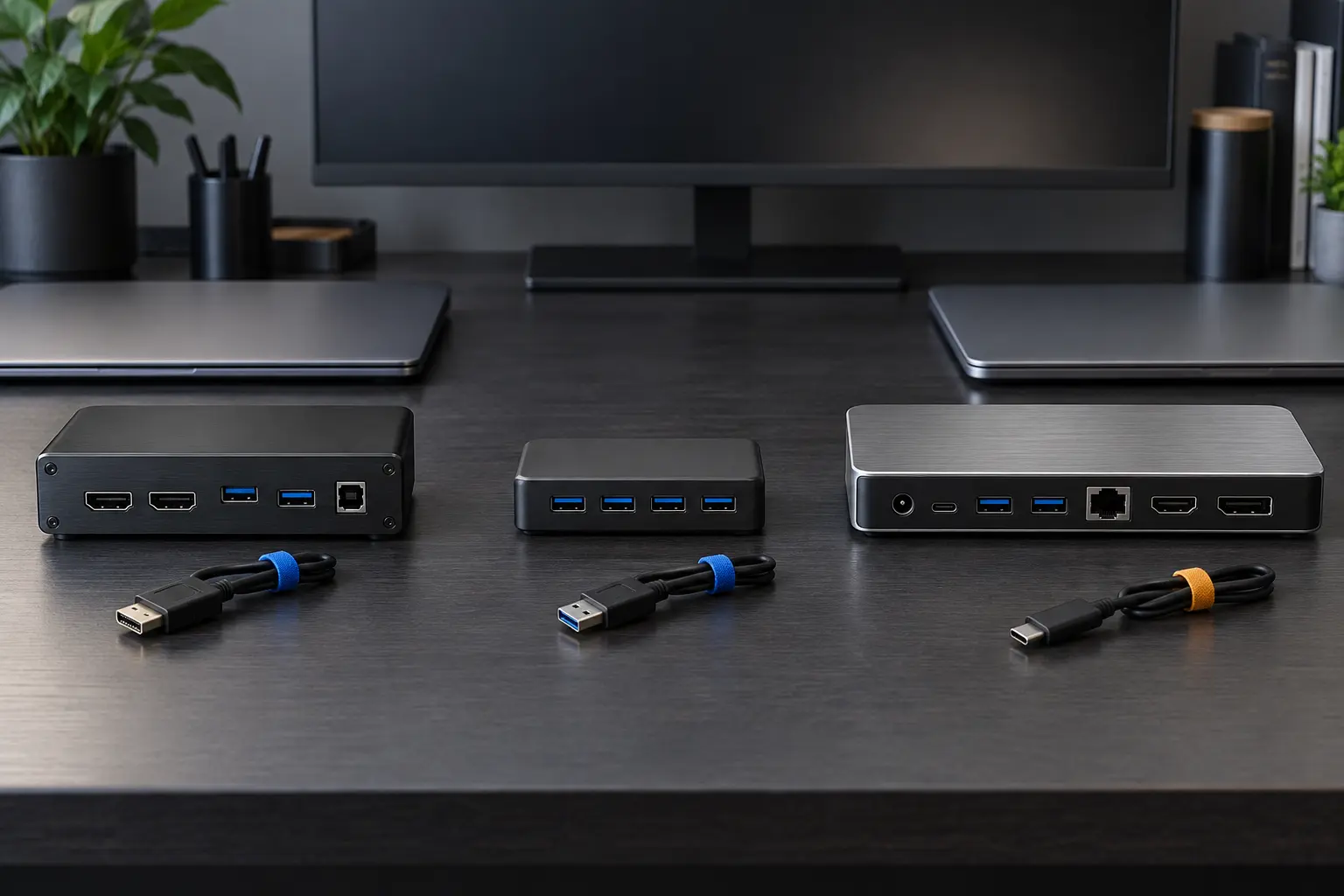
The three jobs
KVM switch: routes one or more display signals and selected USB human-interface devices between computers. Some models also switch audio, Ethernet or additional USB devices. “KVM” does not guarantee a particular resolution, refresh rate, number of monitors or USB speed.
USB peripheral switch: connects a set of USB devices to one host at a time. It can be a clean answer for keyboard, mouse, webcam, microphone or printer while the monitor uses separate inputs. It does not normally create a video output or charge a laptop.
Dock: converts one host connection—often USB-C, USB4 or Thunderbolt—into display, USB, network, audio and power connections. Most ordinary docks have one upstream host at a time. Plugging two computers into downstream ports does not turn a dock into a switch.
Step 1: write the endpoint inventory
- Computer A and B: exact model, operating system, video-capable ports, USB generation and required charging wattage.
- Displays: resolution, refresh rate, connector inputs and whether each display has a usable input-switch control.
- USB devices: keyboard, mouse, webcam, microphone, storage, security key, printer and any device with unusually high bandwidth or power needs.
- Network and audio: decide whether they must follow the selected computer or can remain separate.
- Work mode: one computer at a time, both visible simultaneously, remote control or rapid switching during calls.
Do not treat the connector shape as the capability. USB-C can carry several different combinations of data, display and power. Confirm each computer's manual. The USB Implementers Forum's USB4 overview describes the architecture; a device's own specification states which capabilities it implements.
Step 2: prove the video path
For every host, write: computer output → cable or dock → switch input → switch output → monitor input. Every component must support the required resolution, refresh rate, color format and display count. A link is limited by the weakest element.
“8K” on a listing is not enough. It may apply only to one display, one refresh rate, one color mode or a particular compression path. Multi-monitor support may differ by operating system and host hardware. DisplayPort Multi-Stream Transport, Thunderbolt display tunneling and software display adapters are different mechanisms with different constraints.
Read the monitor, computer and switch documentation together. VESA's DisplayPort FAQ is useful background, but it cannot certify a particular chain. If protected video matters, verify HDCP support end to end; do not assume a generic resolution claim covers it.
EDID and the disappearing-window problem
A computer learns display capabilities through EDID. When a basic switch disconnects the inactive host from the monitor, that computer may behave as though the display vanished. Windows can move, remote sessions can resize and returning to the host can trigger a slow handshake.
Some KVMs emulate or retain display information for inactive hosts. Implementation varies by model and port. Treat “EDID emulation” as a feature to verify in the manual, not a universal property of KVMs. Extron's EDID device documentation illustrates how a source can be given stored display capability data; a KVM's own manual must explain what its switch preserves.
If window placement matters, test wake, sleep, power-off and switching before the return window closes. No specification sheet can predict every operating-system and monitor interaction.
Step 3: separate low-speed control from high-bandwidth devices
Keyboards and mice need little bandwidth. Webcams, audio interfaces and storage can be more demanding and more sensitive to resets. Many KVMs provide dedicated keyboard and mouse ports with hotkey features; those ports may not behave like general-purpose USB ports. A USB switch may advertise USB 3.x but still share one upstream link among all attached devices.
Do not switch an active external drive. Eject or unmount it first, and do not use a switched USB path as the only copy of important data. Security keys should remain under physical control; moving one between hosts manually may be clearer than leaving it attached to a shared switch.
For webcams and microphones, test whether the conferencing application reacquires the device after switching. If calls matter more than desk purity, a separate webcam for each computer may be the reliable no-buy alternative to replacing the entire switching system.
Step 4: treat charging as its own system
A dock may deliver power to one laptop through its upstream connection. Many KVMs do not. A dual-host USB-C KVM may combine switching, display, data and charging, but power allocation, supported wattage and cable requirements are model-specific.
Compare each laptop's recommended input with the device's per-host power delivery. “Up to 100 W” may describe the power supply or one port under particular conditions, not simultaneous delivery to two hosts. If a laptop needs more power than the setup provides, keep its manufacturer-approved charger connected rather than assuming intermittent charging is harmless.
Use certified cables rated for the required data and power. A cable that charges a phone is not proof that it carries display video or the desired USB speed.
Four honest desk patterns
Pattern A: monitor inputs plus a USB switch
Connect each computer directly to a different monitor input. Share keyboard, mouse and perhaps webcam through a USB switch. Change the monitor input and USB host separately.
Fits: one monitor, modest switching frequency, high video requirements and a desire to keep the video path simple. Tradeoff: two actions instead of one and possible mismatch if the monitor and USB switch point to different computers.
Pattern B: a conventional KVM
Run each computer's video and USB into the KVM, then one output set to the desk. One control changes the active host.
Fits: frequent switching and clearly supported display modes. Tradeoff: more cables, another video handshake and exact compatibility work. High-refresh, multiple-display and mixed-connector setups narrow the field quickly.
Pattern C: one dock per laptop plus a KVM or monitor
Each laptop connects to its own dock; dock outputs feed a KVM or separate monitor inputs. This preserves one-cable laptop arrival while keeping host-specific charging.
Fits: laptops with different requirements or docks already owned. Tradeoff: cost, desk clutter and two layers of compatibility. More boxes are not automatically more reliable.
Pattern D: monitor with built-in KVM or software sharing
Some monitors combine multiple video inputs, a USB hub and host selection. Software can also share keyboard and mouse over a network while displays remain separate.
Fits: a planned monitor replacement or two computers that can remain visible. Tradeoff: monitor-specific behavior, network dependence for software and no universal path for pre-boot control or restricted work computers.
What not to buy
- A dock with two USB-C-shaped ports when the manual identifies only one as upstream.
- A KVM based on headline resolution without the exact refresh rate, color mode, display count and host requirements.
- A USB 2.0 switch for a high-resolution webcam or fast external storage.
- An unpowered switch for multiple bus-powered devices unless the manual and total power budget support them.
- A software-only sharing tool when employer policy, network separation, pre-boot access or gaming latency makes it unsuitable.
- A stack of adapters whose combined behavior has no documented support path.
The one-page buying sheet
- Hosts: write exact ports and operating systems.
- Displays: write count, native resolution, required refresh and inputs.
- USB: separate keyboard/mouse from camera, audio and storage.
- Power: write required charging per laptop.
- Switch behavior: require the number of actions you will tolerate.
- Failure tests: sleep, wake, reboot, video call, external drive and switching under ordinary load.
- Return rule: reject the setup if it fails a repeated daily transition, even if a feature list says it should work.
This sheet is more valuable than a generic “best KVM” ranking because the correct device is a property of the complete chain.
Commercial disclosure and official fallbacks
This page uses direct, non-affiliate references to standards bodies and technical documentation. Life in the Simulation has no approved affiliate configuration for this category and earns no commission from these links. No specific product was tested or endorsed.
Use manufacturer manuals, compatibility lists and return terms before buying. For an existing dock question, start with USB-C Hub vs Thunderbolt Dock vs Monitor Dock. If the manual does not show both hosts, every video mode and per-host power, do not fill the gaps with retailer copy.
Official technical references
- USB Implementers Forum, USB4, for the architecture overview and links to specifications.
- VESA, DisplayPort FAQ, for DisplayPort capabilities and terminology.
- Intel, Thunderbolt technology overview, for the platform's display, data and power roles.
- Extron, EDID device documentation, for a manufacturer example of stored display capability data in a video chain.
END OF FIELD GUIDE 053
Keep the question. Test the model.
Choose the narrowest claim the evidence can carry, then leave room for revision.